Materials and Textures
Materials describe how a mesh surface should look. This page shows how to use the built-in materials, create independent Phong and PBR materials, attach textures, and assign the result to a scene mesh.
Most applications only need self.scene and ke.material. The custom graphics
pipeline section at the end is optional and intended for rendering experiments.
Examples assume import kangengine as ke and run inside an App subclass, so
the current application and its scene are accessed as self and self.scene.
API namespaces
KangEngine separates normal scene authoring from low-level rendering:
Namespace |
Use it for |
|---|---|
|
Adding meshes, ground planes, and imported assets to the scene |
|
Material classes, presets, and vertex-color styles |
|
Textures, GPU buffers, custom pipelines, and render hooks |
For ordinary meshes, create a material and pass it to
self.scene.add_mesh().
Standard materials
create_standard_materials() creates a cached bundle of shared materials used
by common scene, debug, ground, and character workflows. Calling it again
returns the same bundle unless force=True is supplied.
The simplest ground call automatically uses the shared checkerboard material from the standard bundle:
ground = self.scene.add_ground()
Obtain the bundle directly when you want to reuse one of its materials or replace the ground material explicitly:
materials = self.create_standard_materials()
ground = self.scene.add_ground(
    path="/diagnostic_ground",
    material=materials.debug_checker,
)
The bundle contains:
Name |
Purpose |
|---|---|
|
Untextured vertex/display color |
|
Textured vertex/display color |
|
Checkerboard ground |
|
Diagnostic UV grid and checker pattern |
|
Default Phong surface |
|
Default PBR surface |
These are shared defaults. Changing one changes every object using that same material. Create a separate material when an object needs its own editable surface values.
Create a Phong material
Phong is useful for simple colored surfaces and assets described with diffuse, specular, and shininess values.
material: ke.material.PhongMaterial = self.create_phong_material(
    diffuse=ke.Vec3(0.8, 0.3, 0.1),
    specular=ke.Vec3(0.2, 0.2, 0.2),
    shininess=32.0,
)

mesh: ke.RenderablePrimView = self.scene.add_mesh(
    path="/orange_mesh",
    mesh_data=mesh_data,
    material=material,
)
create_phong_material() returns a new retained material on every call.
Available texture inputs are diffuse_map, specular_map, alpha_map, and
normal_map.
Create a PBR material
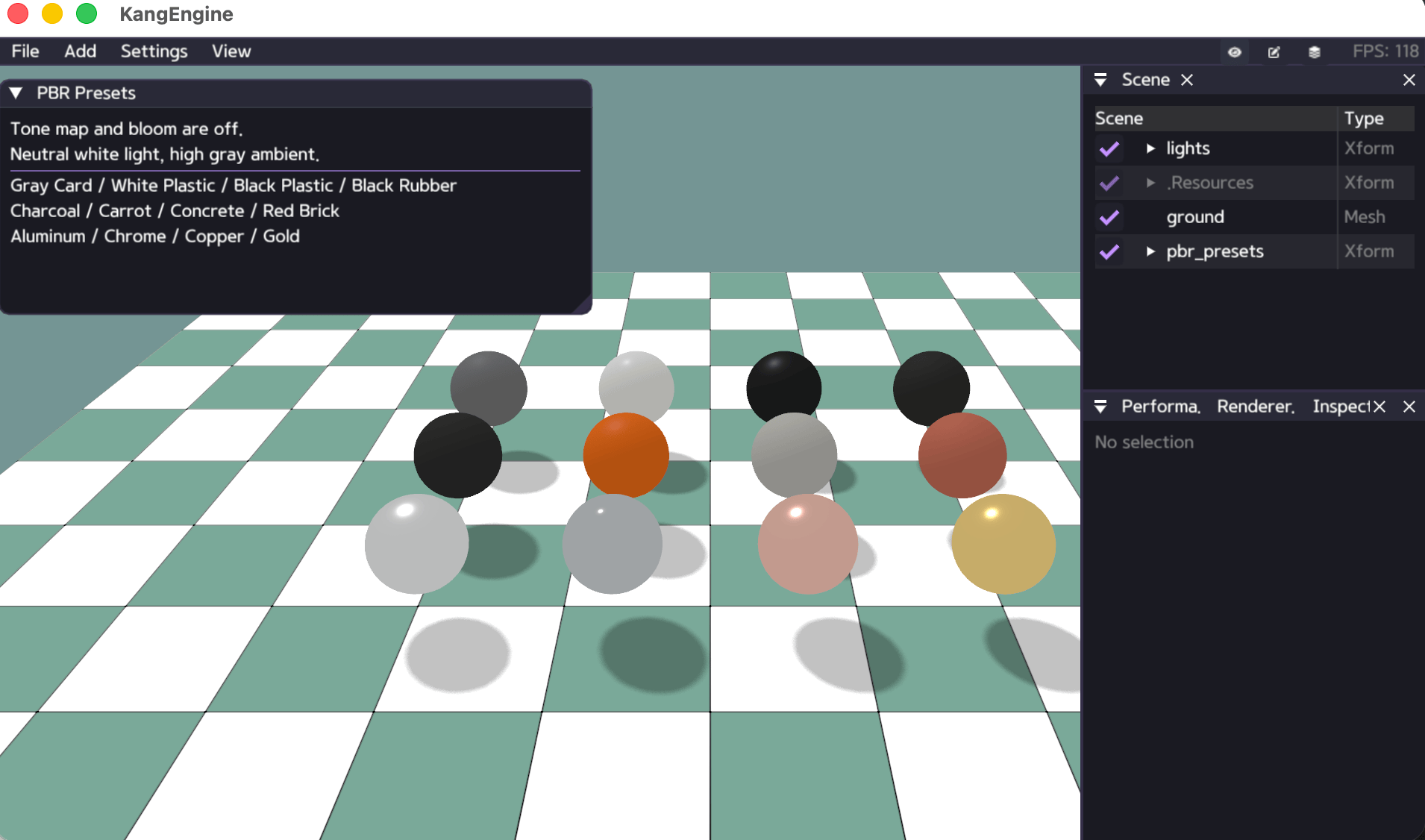
PBR is a better fit for metallic-roughness assets and surfaces that should respond more consistently to different lighting environments.
material: ke.material.PBRMaterial = self.create_pbr_material(
    base_color=ke.Vec4(0.8, 0.3, 0.1, 1.0),
    metallic=0.0,
    roughness=0.6,
)

mesh: ke.RenderablePrimView = self.scene.add_mesh(
    path="/pbr_mesh",
    mesh_data=mesh_data,
    material=material,
)
Phong and PBR parameters are intentionally different. Replacing a Phong
material with a PBR material does not translate diffuse and shininess into
base_color and roughness.
Load and attach textures
App.load_texture() loads a texture through ke.render, retains it for the
application lifetime, and reuses it when the same normalized path is requested
again.
Phong example:
diffuse = self.load_texture("assets/wood_base_color.png")
normal = self.load_texture("assets/wood_normal.png")

material = self.create_phong_material(
    diffuse=ke.Vec3(1.0, 1.0, 1.0),
    diffuse_map=diffuse,
    normal_map=normal,
)
PBR example:
base_color = self.load_texture("assets/metal_base_color.png")
orm = self.load_texture("assets/metal_orm.png")

material = self.create_pbr_material(
    base_color=ke.Vec4(1.0, 1.0, 1.0, 1.0),
    base_color_texture=base_color,
    orm_texture=orm,
)
Material color factors multiply their corresponding textures. Use a white factor when the texture should appear without an additional tint.
OBJ/MTL imports create material subsets automatically and attach supported diffuse, specular, alpha, and normal textures. See Load Assets for the import workflow.
Mesh rendering options
Shadow casting, face culling, and alpha handling belong to the renderable mesh, not to the material itself:
mesh: ke.RenderablePrimView = self.scene.add_mesh(
    path="/mesh",
    mesh_data=mesh_data,
    material=material,
)
mesh.set_casts_shadow(enabled=True)
mesh.set_double_sided(enabled=False)
mesh.set_alpha_mode(mode=ke.render.AlphaMode.OPAQUE)
Use double-sided rendering for surfaces that must be visible from both sides.
For cutout textures use AlphaMode.MASK; for partial transparency use
AlphaMode.BLEND.
Vertex-color styles
Vertex-color materials use the mesh or instance display color and are useful for visualization, debug geometry, and lightweight scene objects.
plain = self.create_vertex_color_material()
textured = self.create_vertex_color_material(
    style=ke.material.VertexColorStyle.TEXTURED
)
checker = self.create_vertex_color_material(
    style=ke.material.VertexColorStyle.CHECKERBOARD
)
debug_checker = self.create_vertex_color_material(
    style=ke.material.VertexColorStyle.DEBUG_CHECKER
)
DEBUG_CHECKER overlays a fine/coarse UV grid and checker pattern. It is useful
for finding distorted or missing UV coordinates.
Shader and pipeline sharing
KangEngine selects and reuses the appropriate built-in pipeline from the material, mesh, and render settings. Creating many materials does not compile the same built-in shader repeatedly.
The Resource panel exposes built-in shader sources and logical pipeline families for inspection. A pipeline entry can be expanded to show its shader sources and variants, such as static/skinned or opaque/transparent.
Custom rendering
Drawing geometry outside the normal scene-mesh path is an advanced workflow. See Custom Graphics Pipelines for buffer layouts, shader stages, render hooks, resource tracking, and a runnable triangle example.
Examples
python/examples/test_phong_texture.pypython/examples/view_obj_scene.pypython/examples/view_pbr.pypython/examples/view_pbr_presets.py